
PDFixer for Windows: sign a PDF with a real handwritten signature that stays on your own PC. Download from the Microsoft Store
PDF SIGNATURE GUIDE FOR WINDOWS
How to sign a PDF —
the practical Windows guide
There are many ways to sign a PDF. Most guides cover drawing, typing and uploading. This guide shows the method that produces the most professional result: a real handwritten signature, cleaned and placed precisely on the page.
PDFixer is the Windows software that handles the step every other tool skips — removing the paper background from a signature photo so the result looks genuinely handwritten, not digitally pasted.
Download. Unzip. Go. Everything stays on your own PC.
✓ 14-day free trial · ✓ One payment, 3-year licence: €49 excl. VAT ·
✓ No subscription · ✓ No auto-renewal
4.7 ★★★★★ Made by the team behind Fabreasy · 38 reviews on Capterra · used by over 1,000 professionals · Dutch Windows software
⚡ Launch discount: use code PFX20 and pay only €29 instead of €49 · Valid for the first 100 licences.
Five ways to sign a PDF — which one fits your situation
Not every signing task is the same. The right method depends on what the document is for, who will receive it, and whether it needs to look professionally signed or just completed.
| Method | Best for | Main limitation |
|---|---|---|
| Typed signature | Quick internal approvals where appearance is not critical | Looks generic — not a real handwritten signature |
| Drawn signature | Touchscreens or fast one-off documents | Hard to reproduce neatly with a mouse |
| Uploaded image (uncleaned) | When you already have a clean transparent PNG | A phone photo keeps the paper background |
| Cleaned photo signature ✓ | Contracts, offers, forms — any document where it must look handwritten | Needs background removal — PDFixer handles this in one step |
| Certified e-signature | Legally binding workflows requiring verified identity | Requires an e-signing platform — overkill for most daily tasks |
How to sign a PDF with a handwritten signature — step by step
This is the workflow PDFixer is built for. It solves the problem that every other method leaves unsolved: what to do when your signature photo has a white background.
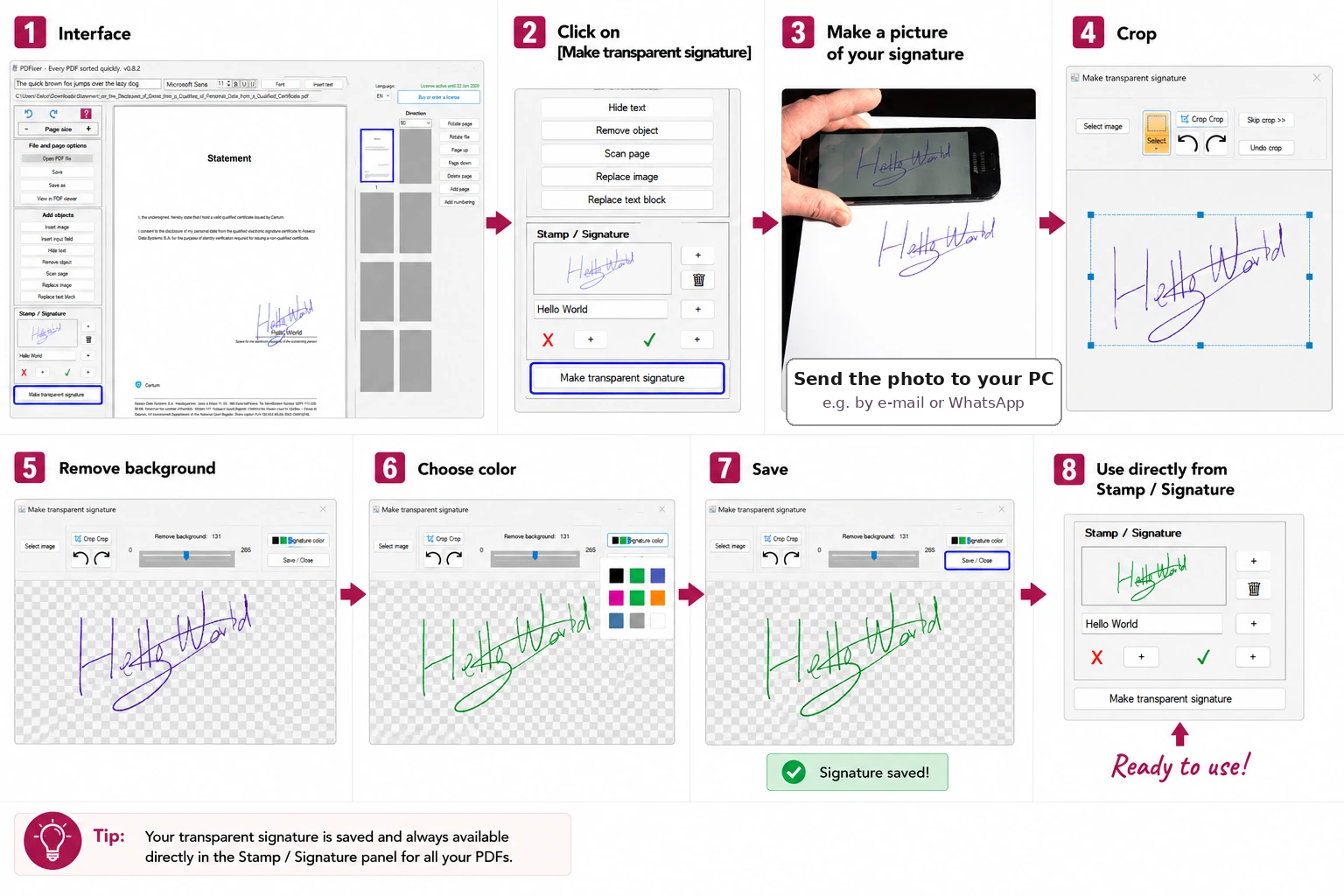
- Write your signature clearly on plain white paper. Blue or black pen gives the cleanest result.
- Photograph it with your phone. Good light and a steady hand matter more than camera quality.
- Send the photo to your PC by email or WhatsApp.
- Open your PDF in PDFixer on Windows.
- In the Stamp / Signature panel, click Make transparent signature.
- Import the photo and adjust the background removal slider until only the handwriting remains.
- Choose ink colour if needed. Save the transparent signature as a preset for reuse on future documents.
- Place the signature on the correct page. Resize and align it with the signature line.
- Save the PDF locally. Nothing leaves your machine.
The step most guides skip
Every tutorial explains how to upload or draw a signature. Very few explain what happens when you photograph a real handwritten signature and try to use that photo directly.
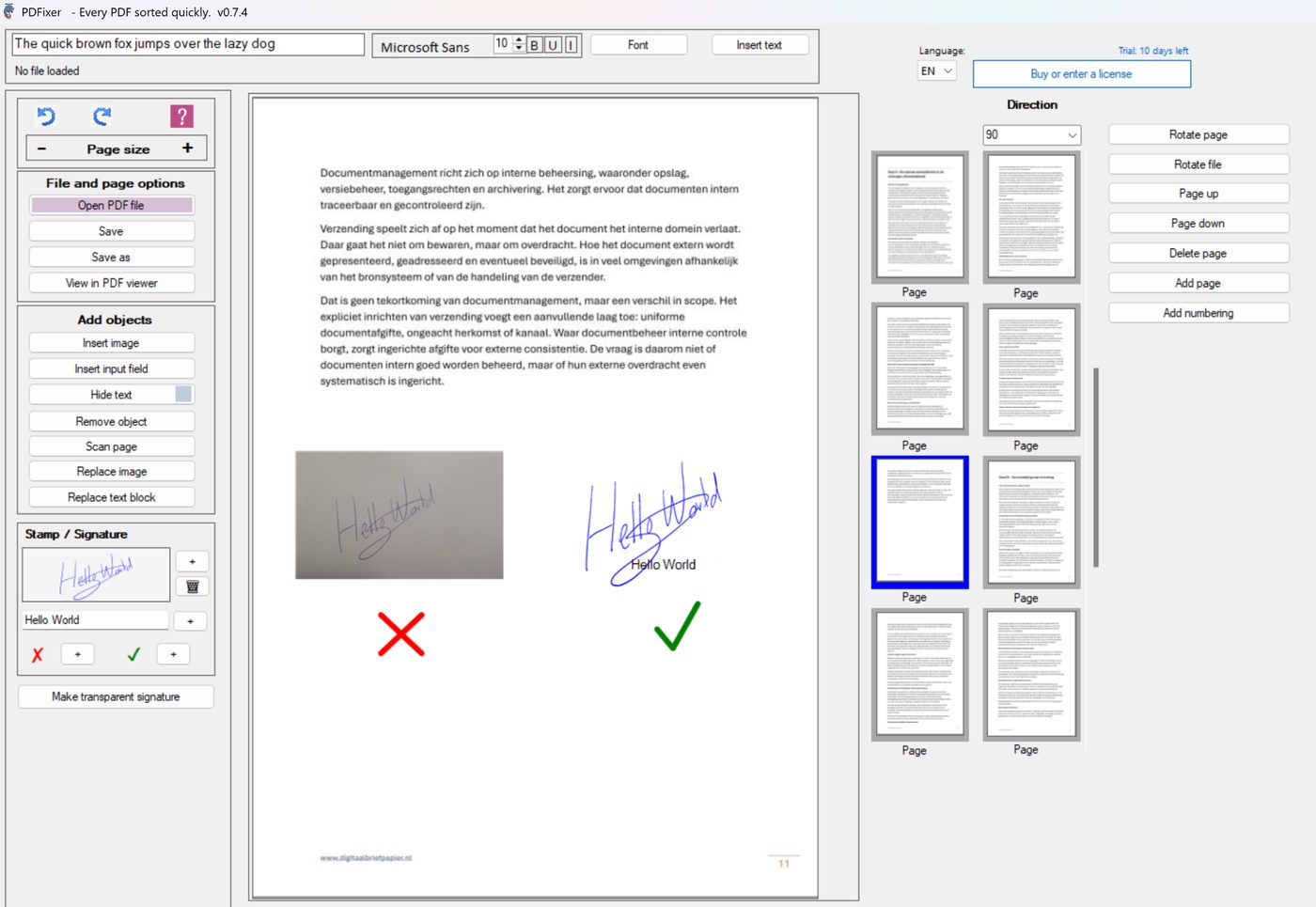
The paper around the ink becomes part of the image. When you place it on a PDF, you get a white rectangle sitting on top of the document — the signature line underneath it disappears, and the result looks like a sticky note rather than a genuine signature.
PDFixer was designed around this specific problem. The background removal tool is not a side feature — it is the core of the workflow. You adjust a slider until only the handwriting remains, save the result as a transparent PNG preset, and every future signing takes under thirty seconds.
That is the difference between a PDF that looks signed and a PDF that looks professionally signed.
How to sign a PDF without Adobe
Adobe Acrobat is the market standard but it is expensive and it is far more product than most people need for signing. If your only requirement is to place a visible handwritten signature on a PDF and save it, Adobe Acrobat Reader’s Fill & Sign tool handles the basic case — but it does not remove the background from a signature photo, and the result often still shows the white rectangle problem.
PDFixer solves the same practical task without the Adobe account, without the subscription, and with the background removal step built in. It is Dutch Windows software with a one-time price of €49 excl. VAT for a 3-year licence including all updates.
PDFixer versus online PDF signing tools
Online tools are fast and free for simple tasks. For documents that contain personal data, customer information or contract terms, local signing is the safer choice.
| Need | Standard online tool | PDFixer for Windows |
|---|---|---|
| Sign with handwritten photo | Upload + white box problem | ✓ Background removed — clean result |
| Background removal built in | Rarely or never | ✓ Core feature — one slider |
| Save reusable signature preset | Session only | ✓ Permanent preset in panel |
| Works offline | No — browser required | ✓ Fully local on Windows |
| Document uploaded to server | Yes | ✓ Never — stays on your PC |
| Price | Free with ads or freemium | ✓ €49 one-time, 3-year licence |
FAQ — how to sign a PDF
How do I sign a PDF on Windows?
Why does my signature look like a pasted box?
Can I sign a PDF without Adobe?
Can I sign a PDF without uploading it?
How much does PDFixer cost?
Is a signature image legally binding?
Can I reuse the same signature on multiple PDFs?
Sign your PDF with a clean handwritten signature
Download PDFixer from the Microsoft Store. 14-day free trial. One payment, 3-year licence: €49 excl. VAT. No subscription.
✓ 14-day free trial · ✓ One payment, 3-year licence: €49 excl. VAT · ✓ No subscription · ✓ No auto-renewal
4.7 ★★★★★ Made by the team behind Fabreasy · 38 reviews on Capterra · used by over 1,000 professionals · Dutch Windows software