
PDFixer for Windows · forms
Fill in a signed PDF without breaking the signature
Received a form that has already been digitally signed? In most cases you may still fill in its fields while the signature stays valid. That only works if your software appends your entries to the signed file instead of rewriting the whole file. PDFixer does this, just as Acrobat does.
14 days · all features · no account, no payment details · your documents stay on your PC
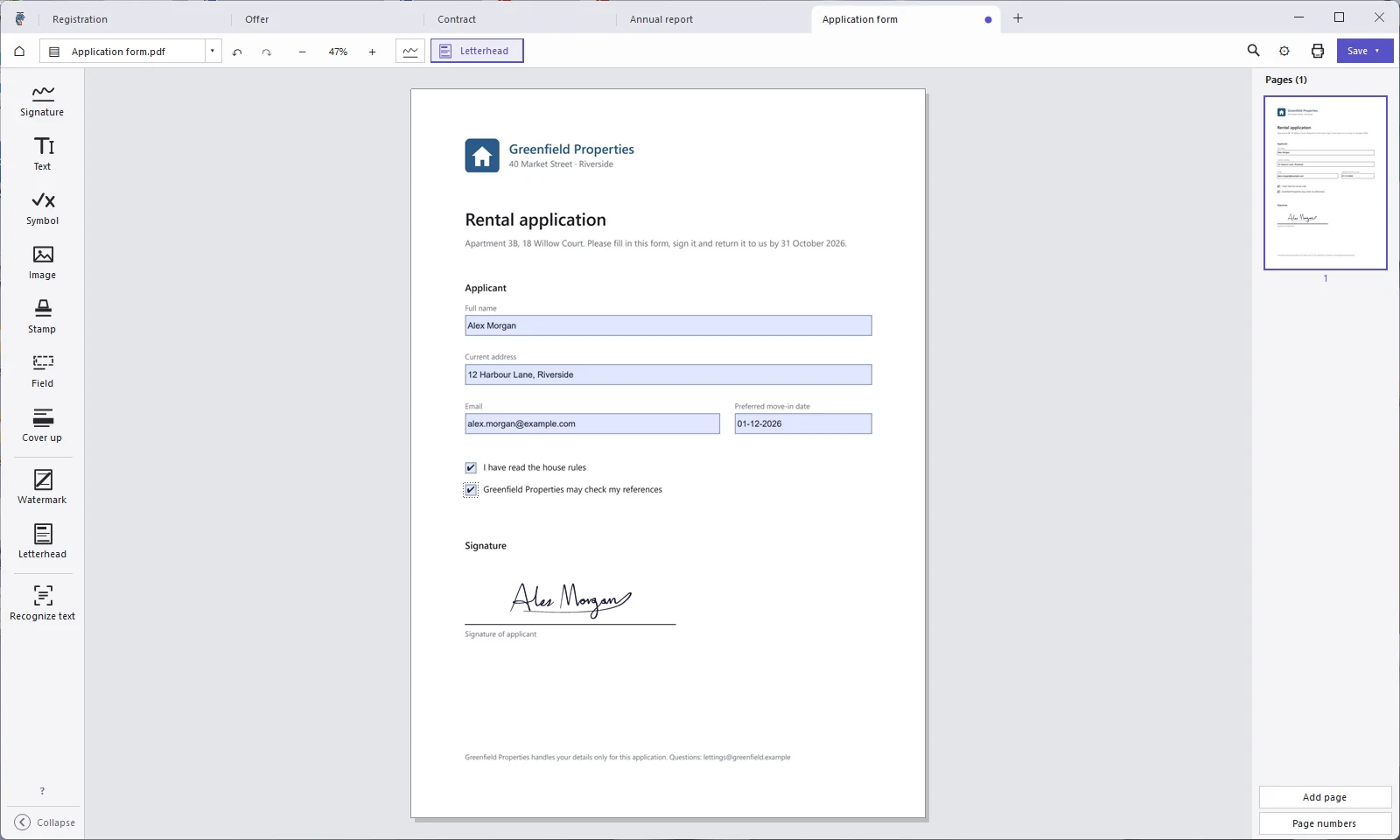
A signed rental application in PDFixer. Click a field and type.
Why does the signature usually break?
A digital signature locks the file exactly as it was at the moment of signing, byte for byte. Most PDF programs rewrite the whole file when you save. Even if you only type a name, the recipient’s PDF reader then sees a different file and reports that the document was changed after signing.
The proper way is called an incremental update: the signed original stays untouched and the filled-in fields are appended to it. A PDF reader then sees that only fields were filled in after signing, and that the signer allowed it.

After filling in and saving, the file still opens with the green bar: signature verified and intact.
When is filling in allowed?
The person who signed the form decides. PDFixer reads it from the file and respects it:
- Approval signature (not certified): filling in is allowed.
- Certified, form filling allowed: filling in is allowed (also when comments are allowed).
- Certified, no changes allowed: filling in breaks the signature.
- Fields locked by the signature: those fields cannot be filled in without breaking it; the other fields can.
If that isn’t possible without breaking the signature, PDFixer warns you as soon as you click such a field. When you save, you choose whether to overwrite the signed file or save a new one.
How to fill in a signed form
- Open the PDF in PDFixer. If the file is digitally signed, a bar at the top shows the signer’s name and signature verified and intact. The bar also warns that editing breaks the signature; filling in fields is the exception.
- Click a field and type. Press Tab to move to the next field. Required fields have a red border.
- Change nothing else. No signature image, no text, stamp or letterhead: any other change breaks the signature. PDFixer warns you if you try. Undo also counts as a change: if you mistype, simply type over it.
- Choose Save. PDFixer appends the filled-in fields to the signed original. Open the file again: the bar still says the signature is intact.
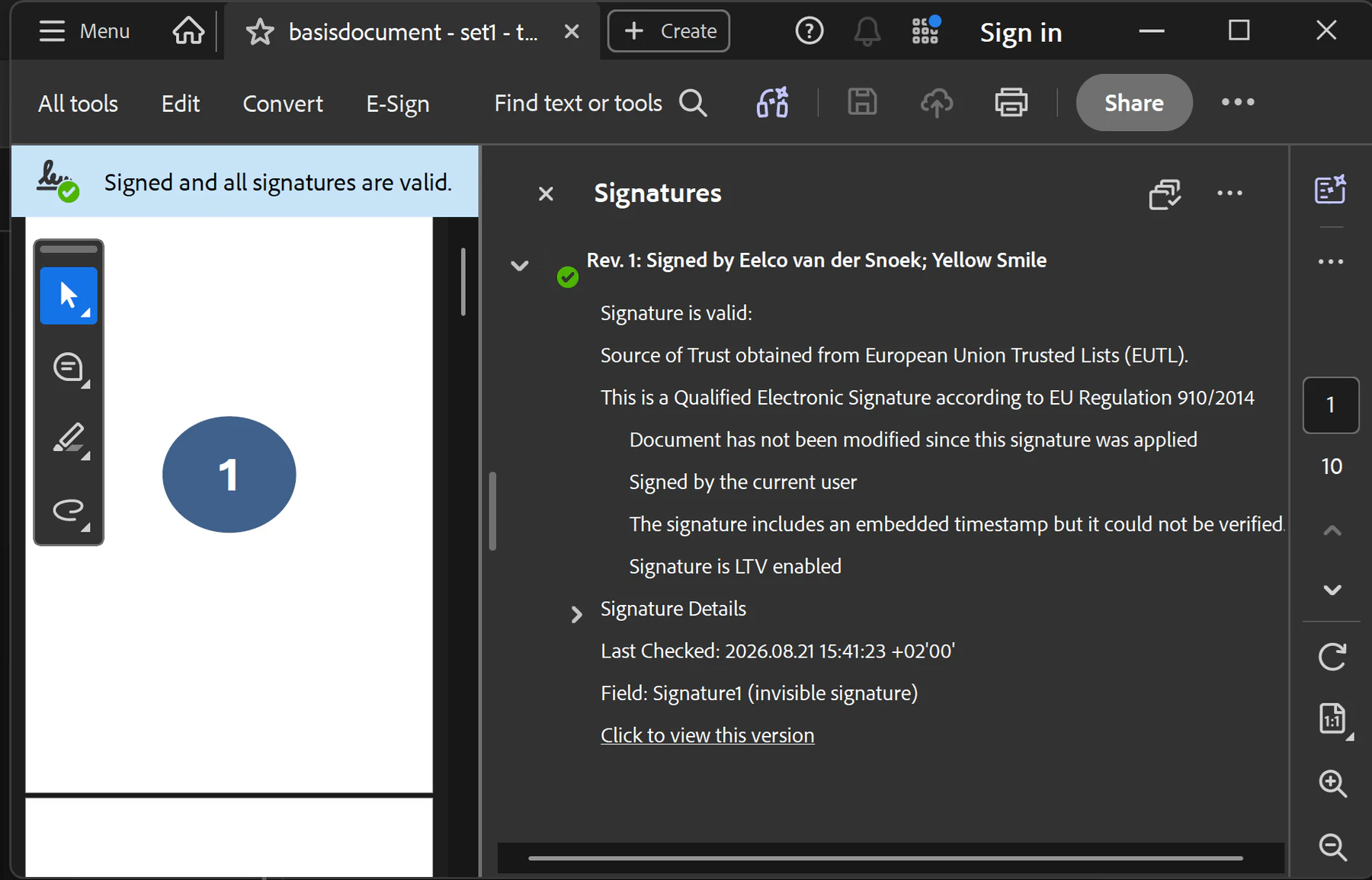
Example: Acrobat reports that the signature is valid. The exact status depends on the certificate used.
What it cannot do
- Place an image of your own signature on an already signed form without breaking the existing signature. That changes the page; it is not a filled-in field.
- Add a second digital signature next to the existing one. Signing again in PDFixer replaces the existing signature; the original file stays unchanged.
- Fill in forms made only in Adobe’s own format (XFA). Those only work in Adobe Acrobat or Reader; PDFixer tells you when you open one.
- Add a password or save as PDF/A in the same step. That also rewrites the file.
Also from Fabreasy / PDF Creator
Do you create the letters and quotes that others sign?
Then PDF Creator gets them right from the start: with your letterhead and signature, from Word, Excel or any program that can print. You set up your sets once. PDFixer is included, for the PDFs you receive.
€33.50 per user per year, excl. VAT. Includes PDFixer. 14 days free.
Questions about signed forms
How do I see whether a PDF is digitally signed?
In PDFixer a bar at the top shows the signer’s name and whether the signature is intact; click Signature details… in the bar for the certificate and the timestamp. In Adobe Reader it is in the Signatures panel.
My PDF reader says the document was changed after filling in. Is that a problem?
A PDF reader may report that fields were filled in after signing; that is not an error. If it says the signature is invalid, more than filling in was changed, or the signer did not allow filling in.
Does the recipient need PDFixer?
No. The saved file is a normal PDF that any PDF reader opens.
Can I then sign the form digitally myself?
Yes, but your signature replaces the existing one: PDFixer cannot add a second signature next to the first. The original file stays as it is.
Is my form uploaded to a server?
No. PDFixer runs on your own Windows PC; the file is not uploaded anywhere.
Try it with your own form
All features free for 14 days. Then €49 for three years, or €19 per user per year, excl. VAT.
14 days · all features · no account, no payment details · your documents stay on your PC