
PDFixer for Windows: insert a clean handwritten signature into any PDF without uploading the document. Download from the Microsoft Store
⚡ Launch discount: use code PFX20 and pay only €29 instead of €49 · Valid for the first 100 licences.
PDF SIGNATURE GUIDE FOR WINDOWS
Insert a signature in a PDF — without the white box
Most guides tell you to draw, type or upload a signature. They skip the hardest part: a phone photo of your handwritten signature includes the paper background, and the result looks like a pasted rectangle.
PDFixer removes that background first. You get a clean transparent signature image that sits directly on the PDF page — the signature line underneath stays visible, the document looks professionally signed.
Everything runs locally on your Windows PC. No upload, no account, no subscription.
✓ 14-day free trial · ✓ One payment, 3-year licence: €49 excl. VAT ·
✓ No subscription · ✓ No auto-renewal
4.7 ★★★★★ Made by the team behind Fabreasy · 38 reviews on Capterra ·
used by over 1,000 professionals · Dutch Windows software
Why most signature inserts look unprofessional
Every competing tool — PDF24, Smallpdf, Sejda, PDFgear, iLovePDF — offers three options: type a name, draw with a mouse, or upload an image. The upload option sounds useful until you try it with a real phone photo of your handwritten signature.
A phone camera captures both the ink and the paper. The result is a white or grey rectangle pasted onto your PDF. The signature line underneath it disappears. The document looks like it was signed with a sticky note on top.
PDFixer removes the paper background before the signature touches the PDF. The handwriting sits directly on the page, the signature line remains visible, and the result looks exactly like a real handwritten signature on the document.
Before and after background removal
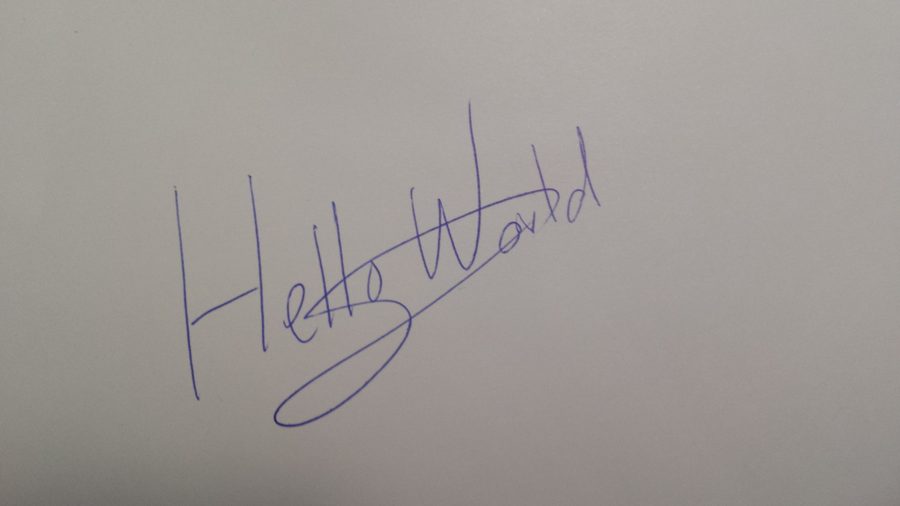
Before
White paper background included

After
Clean transparent signature, ready to insert
How to insert a signature in a PDF using PDFixer
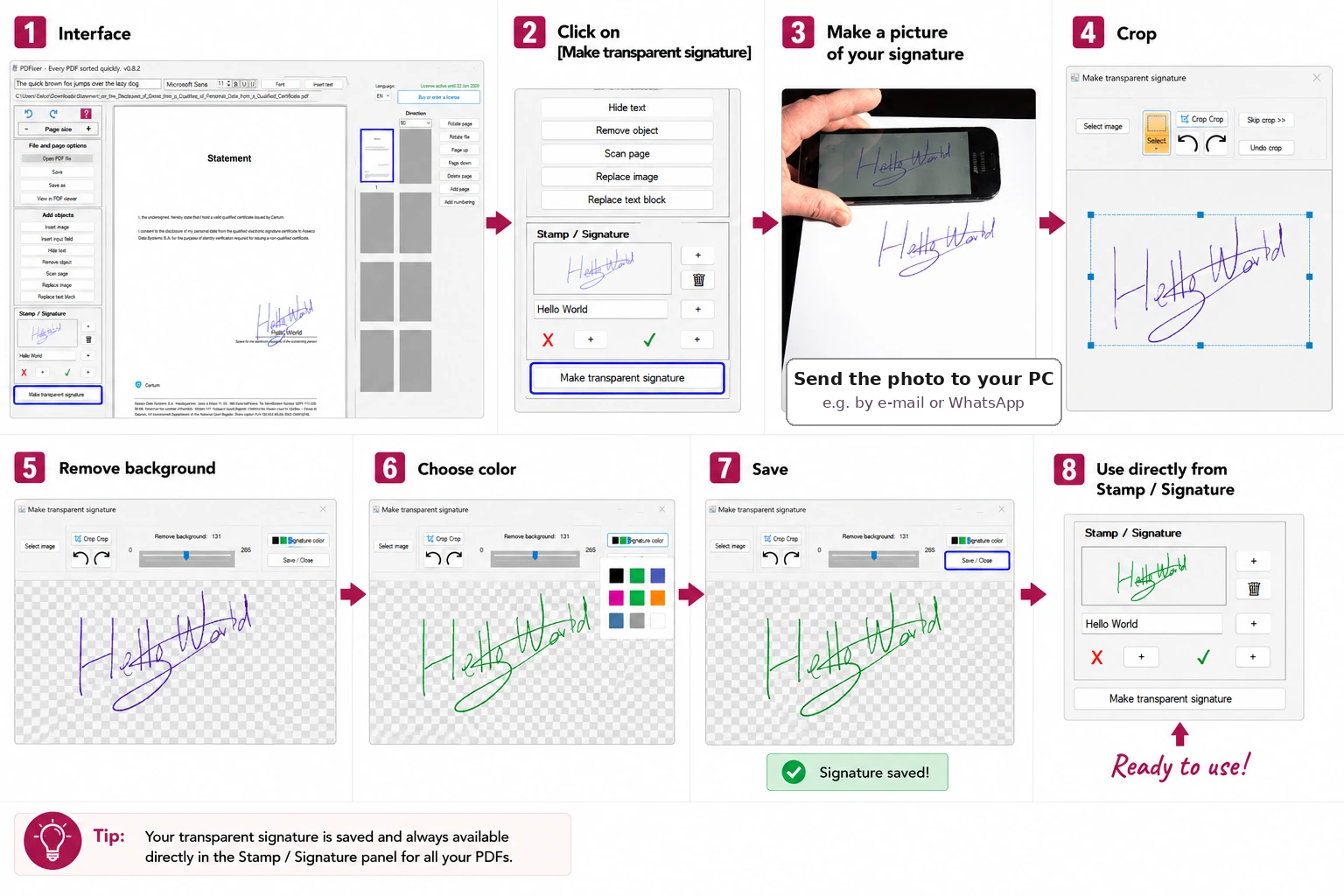
Quick answer: open the PDF in PDFixer, click Make transparent signature, photograph your signature, send the photo to your PC, import it, remove the background, place it on the PDF page, save locally.
- Open your PDF in PDFixer on Windows.
- Click Make transparent signature in the Stamp / Signature panel.
- Write your signature clearly on white paper — blue or black ink works best.
- Take a sharp photo and send it to your PC via email or WhatsApp.
- Import the photo into PDFixer. Adjust the background removal slider until only the handwriting remains.
- Choose ink colour if needed, then save the transparent signature as a reusable preset.
- Place the signature on the correct PDF page. Resize and align it with the signature line.
- Save the signed PDF locally. Nothing is uploaded.
The important difference is step 5. Most tutorials skip it entirely. Without background removal, the signature insert always carries the paper with it.
Typed signature
Type your name in a script font. Fast for low-stakes approvals where appearance is not critical. Does not look like a real handwritten signature.
Drawn signature
Draw with mouse or touchpad. Works for quick one-off signing. Hard to reproduce consistently and rarely looks natural.
Cleaned photo signature ✓
Photograph a real handwritten signature, remove the paper background in PDFixer, save as a transparent preset. Looks exactly like a real handwritten signature. Reusable on every future PDF.
PDFixer versus a standard online PDF signer
Online signing tools are convenient for low-stakes documents. They are not the right choice when the document is confidential or when you need a genuinely clean handwritten signature — not a typed or mouse-drawn alternative.
| Need | Standard online tool | PDFixer for Windows |
|---|---|---|
| Insert signature quickly | Usually strong | ✓ Strong, local on Windows |
| Remove paper background from photo | Often missing or hidden | ✓ Core workflow — one click |
| Reuse same signature | Often lost after session | ✓ Saved as permanent preset |
| Confidential documents | File uploaded to server | ✓ File never leaves your PC |
| No subscription | Often freemium with limits | ✓ One payment, 3-year licence: €49 |
| Works without internet | No — requires upload | ✓ Fully offline on Windows |
Contracts and offers
Insert your signature on the correct page and line. The document stays on your Windows PC. No cloud storage, no third-party servers.
Forms and approvals
Add a signature or approval mark to HR documents, invoices and administrative paperwork without printing a single page.
Repeat signing workflows
Save your transparent signature as a preset. Open the next document, place in two clicks, save. The whole process takes under thirty seconds.
Signature image versus electronic signature
An electronic signature platform — DocuSign, Adobe Sign, Foxit eSign — uses cryptographic certificates, identity verification and audit trails. Those tools are designed for legally binding workflows where the signing party must be verifiably identified.
PDFixer does something different and more practical: it inserts a visible handwritten signature image on a PDF page. No certificate, no identity check, no account required. For most everyday signing tasks — offers, internal approvals, correspondence, forms — that is exactly what is needed and far faster than a formal e-signing workflow.
PDFixer is not a replacement for certificate-based digital signing when that is legally or contractually required.
Why local matters for signed documents
Signed documents often contain names, addresses, prices, contract terms or personal data. Uploading them to an online tool means that data reaches an external server, even temporarily.
PDFixer runs entirely on Windows. The PDF you open, the signature image you create and the signed file you save never leave your machine. That makes it the right tool for accountants, legal support staff, HR administrators and small business owners who handle sensitive documents daily.
Related signing tasks covered by PDFixer
FAQ — inserting a signature in a PDF
How do I insert a signature in a PDF?
Why does my inserted signature show a white box?
Can I insert a signature from a photo into a PDF?
Does my PDF get uploaded when I insert a signature?
How much does PDFixer cost?
Is inserting a signature image the same as an electronic signature?
Can I reuse the same signature on multiple PDFs?
Insert a clean signature in your PDF — in minutes
Download PDFixer from the Microsoft Store. 14-day free trial. One payment, 3-year licence: €49 excl. VAT. No subscription.
✓ 14-day free trial · ✓ One payment, 3-year licence: €49 excl. VAT · ✓ No subscription · ✓ No auto-renewal
4.7 ★★★★★ Made by the team behind Fabreasy · 38 reviews on Capterra · used by over 1,000 professionals · Dutch Windows software