
PDFixer for Windows · digital signing
Sign a PDF digitally with your smart card or USB token
Is your certificate on a smart card or USB token, or in Windows? Then you can sign a PDF in PDFixer without Adobe and without uploading anything: choose Save with my certificate, pick the certificate and type your PIN. If the certificate is on a card, the signature is created on the card. Every signature gets a timestamp.
14 days · all features · no account, no payment details · your documents stay on your PC
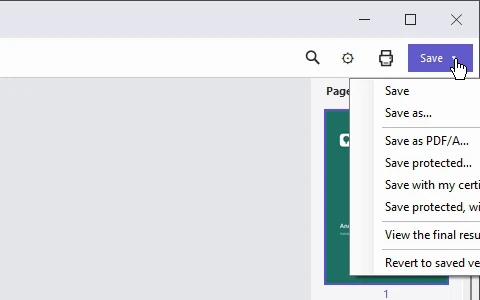
The Save menu: signing is a way of saving.
What you need
- A signing certificate from an issuer. It is on a smart card or USB token, or in the Windows certificate store.
- The issuer’s software if the certificate is on a card or token. For a Certum certificate that is proCertum CardManager. If you insert a card without that software, PDFixer tells you.
- Your PIN. It stays on your PC and is not stored anywhere.
- An internet connection. Every signature gets a timestamp; without a connection PDFixer does not sign.
A login method for government or banking websites is not a signing certificate. To sign a PDF you need a certificate of your own.
Visible or digital?
An image of your signature shows who signed. A digital signature with your certificate shows that the file has not changed since. PDFixer does both; this page is about the digital one.
Whether the certificate itself is trusted is up to the recipient’s PDF reader. Adobe Reader trusts certificates from issuers on the Adobe or EU trust lists.

After signing: digitally signed, with timestamp, signature verified and intact.
How to sign a PDF with your card or token
- Insert the card or token and open the PDF in PDFixer.
- Choose Save with my certificate… in the Save menu. Does the file also need a password? Choose Save protected, with my certificate…: it does both in one step.
- Pick your certificate, then choose Sign. The Where column shows Windows or the name of your card or token. To see only qualified certificates, tick Qualified certificates only (eIDAS). Not in the list? Insert the card and click Search again. Then choose where to save the signed file; PDFixer suggests … – signed.
- Type your PIN and choose Sign. If the card reports that you have one attempt left, PDFixer warns you, because one more mistake blocks the card. With some cards the issuer’s software asks for the PIN itself.
- Done. PDFixer reports Signed by …, with timestamp. The original file stays unchanged.
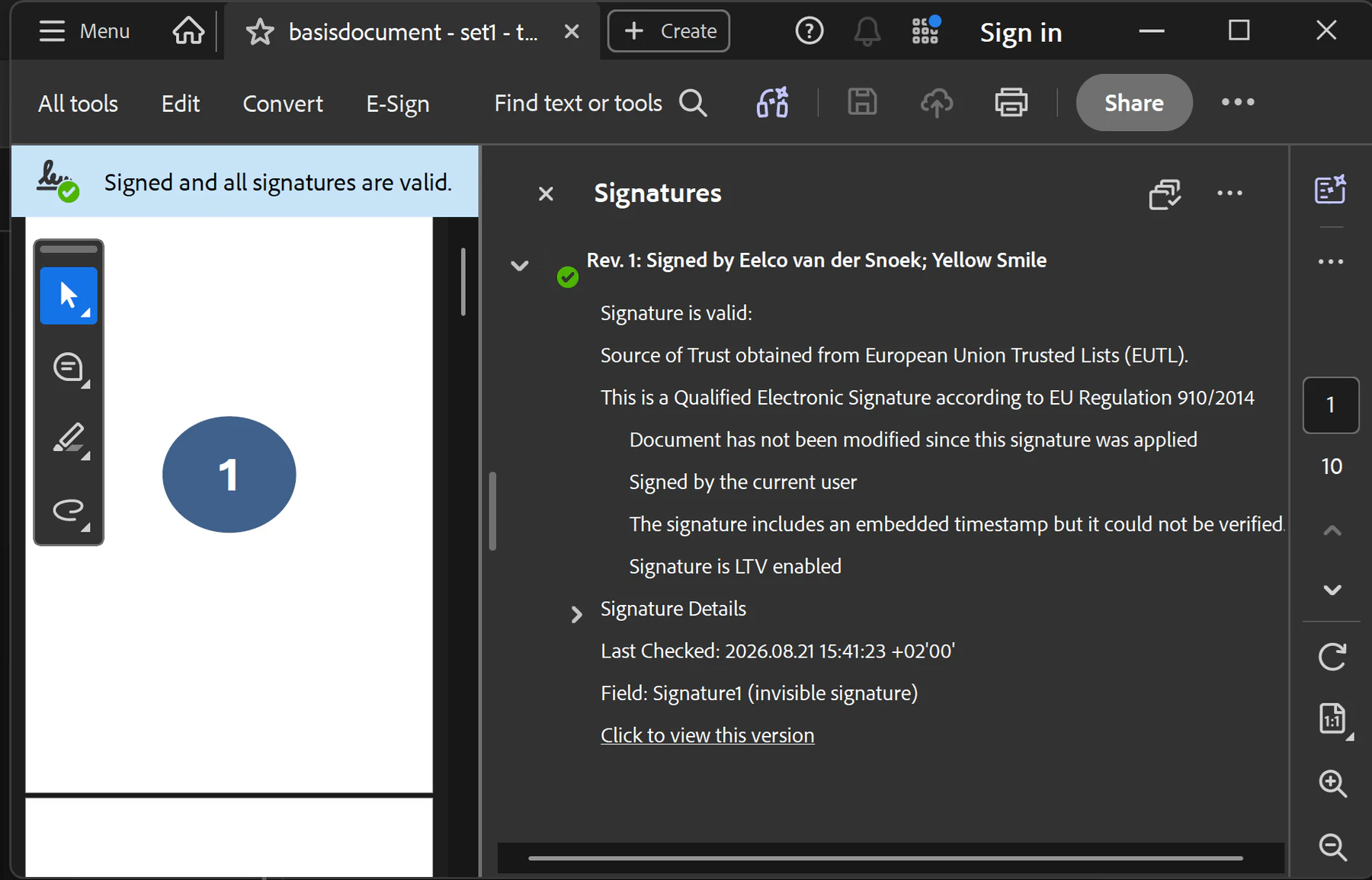
Example: Acrobat reports that the signature is valid and the document unchanged. The exact status depends on the certificate.
Good to know
- Does the document also need to be archived as PDF/A? Save it as PDF/A first, then sign; the other way round, the conversion breaks the signature.
- If the PDF is already digitally signed, your signature replaces the existing one. PDFixer tells you first. Only filling in fields keeps an existing signature intact: see below.
- Card blocked? Unblock it with the PUK code from your issuer.
- PDFixer does not send signature requests to other people. It is for signing yourself, on your own PC.
Also from Fabreasy / SendReady
Do you sign the same kind of documents every day?
With SendReady you switch on digital signing for a letterhead set; from then on every document from that set goes out signed and timestamped, without you doing anything per document. SendReady also prepares the e-mail from a label in the document, with the protected PDF attached. SendReady is an extension to PDF Creator.
€89 per user per year, excl. VAT, with PDF Creator and PDFixer.
Questions about signing with a card or token
Does it work with my card or token?
If your issuer’s software puts the certificate in Windows (most do), PDFixer finds it. PDFixer also talks directly to Certum, SafeNet, A-Trust and OpenSC cards. Try it during the 14 free days: the list shows straight away which certificates PDFixer sees.
Do I need Adobe Acrobat?
No. PDFixer signs by itself. The recipient checks the signature in a PDF reader that verifies signatures, such as the free Adobe Reader.
Does the signature get a timestamp?
Yes, always. PDFixer requests a timestamp from a timestamping service, so the time of signing does not depend on your PC’s clock. That is why signing needs an internet connection.
Is my PIN stored?
No. The PIN only goes to the card and is not saved anywhere.
Is my document sent to a server?
No. Signing happens on your own PC. Only the hash of the signature goes to the timestamping service, and PDFixer downloads your issuer’s revocation lists so the signature can still be checked later without internet. The document itself goes nowhere.
Try it with your own certificate
All features free for 14 days. Then €49 for three years, or €19 per user per year, excl. VAT.
14 days · all features · no account, no payment details · your documents stay on your PC