
⚡ Launch discount — first 100 licences: use code PFX20 and pay only €29 instead of €49
Add signature image to PDF
Add a Signature Image to a PDF — Without the White Box
PDFixer places a signature image (JPG, PNG or BMP) on any PDF page, entirely on your Windows PC. It removes the white background from the image first, so only the handwriting sits on the signature line — no white box covering the document.
✓ 14-day free trial · ✓ One payment, 3-year licence: €49 excl. VAT · ✓ No subscription · ✓ No auto-renewal
4.7 ★★★★★ Made by the team behind Fabreasy · 38 reviews on Capterra · used by over 1,000+ professionals
Last updated: July 2026 · Tested on Windows 10 and Windows 11
Quick answer
How do you add a signature image to a PDF?
Open the PDF in PDFixer on Windows, import your signature image in the Stamp / Signature panel, remove the white background with one slider, place the signature on the signature line and save the PDF locally. The document and the image never leave your PC.
Online tools like Sejda, PDFgear and iLovePDF can also place an uploaded signature image — but they require uploading your document to their servers, and most of them place the image including its white background. PDFixer does the one step they skip: it makes the image transparent first.
At a glance
What is PDFixer?
Fabreasy PDFixer is local Windows software that places signature images, stamps and approval marks on PDF documents. The key facts:
| Product | Fabreasy PDFixer |
| Category | PDF editor and signature software (desktop application) |
| Operating system | Windows 10 and Windows 11 |
| Supported image formats | JPG, PNG, BMP — output is a transparent PNG preset |
| Documents uploaded | Never — all processing happens locally on your PC |
| Price | €49 excl. VAT, one-time payment, 3-year licence, all updates included |
| Free trial | 14 days, full functionality, via the Microsoft Store |
| Developer | Fabreasy (the Netherlands) — rated 4.7/5 on Capterra (38 reviews), used by 1,000+ professionals |
The problem
Why does a signature image show a white box on the PDF?
A photo or scan of your signature captures both the ink and the paper. Place that image directly on a PDF and it appears as a white rectangle that covers the text and the signature line underneath. That is the single most common complaint about adding a signature image to a PDF.
What a raw signature image does on a PDF:
✗ White background covers the document ✗ Shadows and paper texture visible ✗ Signature line disappears behind the image ✗ Looks unprofessional
The fix is to make the background transparent before placing the image. PDFixer builds this into the same workflow: import the image, move one slider, and only the handwriting remains.
Step by step
Add a signature image to a PDF in 7 steps
- Open your PDF in PDFixer on Windows.
- Go to the Stamp / Signature panel and click Make transparent signature.
- Import your signature image — a JPG, PNG or BMP file, or a photo of your handwritten signature — and crop it to the signature.
- Move the Remove background slider until only the handwriting remains. The white background disappears.
- Click Save — the signature is stored as a reusable preset.
- Place the signature image on the signature line. Resize and position it precisely.
- Save the PDF locally. Nothing is uploaded.
The preset stays available in the Stamp / Signature panel for every future PDF. Adding your signature image to the next document takes under thirty seconds.
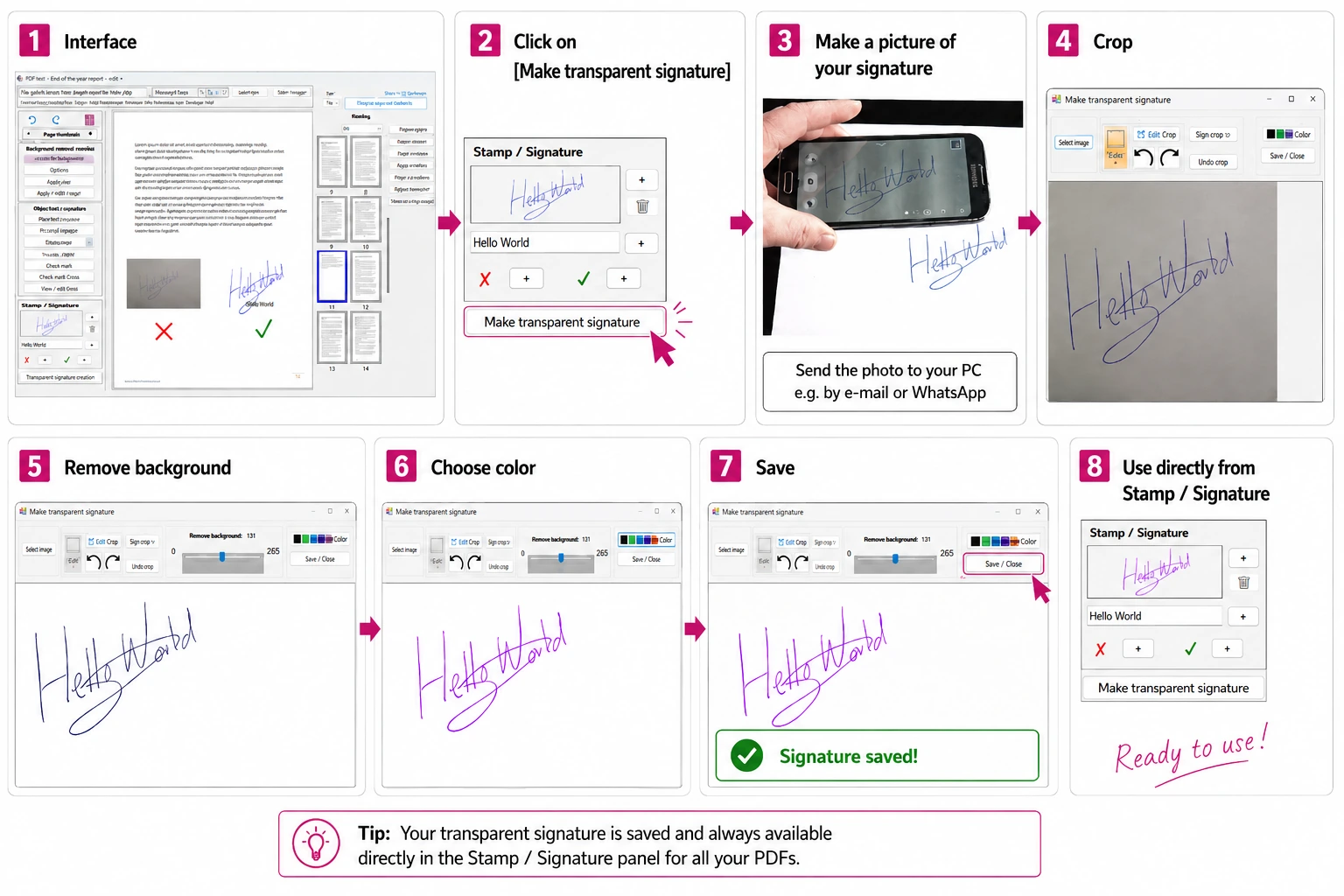
Image to digital signature
Can I turn an image into a digital signature?
Yes — if you mean a visible, reusable signature made from an image of your handwriting. PDFixer converts a signature image or photo into a clean transparent signature that you place on PDF pages. This is what most people searching for “image to digital signature” or “digital signature from image” want: their real handwritten signature, digitised, without the paper background.
No — if you mean a certified electronic signature. A certified digital signature (DocuSign, Adobe Sign, eIDAS-qualified signatures) uses a cryptographic certificate and identity verification. No tool can create that from an image, and any tool claiming otherwise is misleading you. For offers, approvals, forms and everyday correspondence, a visible signature image is exactly what is needed. For legally binding workflows that require identity verification, use a certified e-signing platform.
| Signature image (PDFixer) | Certified digital signature |
|---|---|
| Visible handwriting on the page | Cryptographic certificate attached to the file |
| Made from a photo or scan of your signature | Issued after identity verification |
| For everyday signing: offers, forms, approvals | For legally binding workflows with audit trails |
| No account, no upload, works offline | Requires a platform account and online service |
Need the transparent PNG itself, for Word or e-mail signatures? Use the transparent signature maker — the same PDFixer feature, explained for that job.
Comparison
How does PDFixer compare to online tools?
Browser tools such as Sejda, PDFgear, Smallpdf and iLovePDF can also place an uploaded signature image on a PDF, and for a public document that works fine. The practical differences for daily business use:
| Need | Online tools | PDFixer |
|---|---|---|
| Remove white background from the image | Rarely available | ✓ Built in — one slider |
| Document uploaded to a server | Yes — required to process | ✓ Never — stays on your PC |
| Reusable signature preset | Usually session only | ✓ Saved permanently in panel |
| Works without internet | No — browser required | ✓ Fully offline after install |
| Price | Free with limits, or subscription | ✓ €49 one-time, 3-year licence |
Documents that need a signature — contracts, offers, personnel forms, financial reports — are exactly the documents that should not travel to a third-party server. That is the core reason PDFixer processes everything locally.
About the developer
PDFixer is made by the team behind Fabreasy — Windows PDF software used by 1,000+ professionals.
4.7 ★★★★★ Fabreasy on Capterra · 38 reviews
Ease of use: 4.6 Support: 4.7 Value for money: 4.8 Recommends: 90%
Who uses this
When do you need a signature image on a PDF?
People add a signature image to a PDF to sign offers, approve invoices, complete forms and return correspondence — without printing and scanning.
| Sign offers and contracts Place your handwritten signature image on the signature line and send the PDF back the same minute. |
Complete and return forms Fill in a PDF form, add your signature image and save — no printer or scanner involved. |
| Approve invoices and documents Combine your signature image with Paid or Approved stamps in the same panel. |
Sign confidential documents Personnel files, financial reports and client documents stay on your own PC — nothing is uploaded. |
FAQ
Signature image questions
Get started
Add your signature image to a PDF — locally
Download PDFixer from the Microsoft Store and place your signature image on any PDF, on your own Windows PC.
✓ 14-day free trial · ✓ One payment, 3-year licence: €49 excl. VAT · ✓ No subscription · ✓ No auto-renewal