
PDFixer for Windows: sign a PDF with a clean handwritten signature. Document stays on your own PC. Download from the Microsoft Store
LOCAL WINDOWS PDF SIGNER
Sign PDF
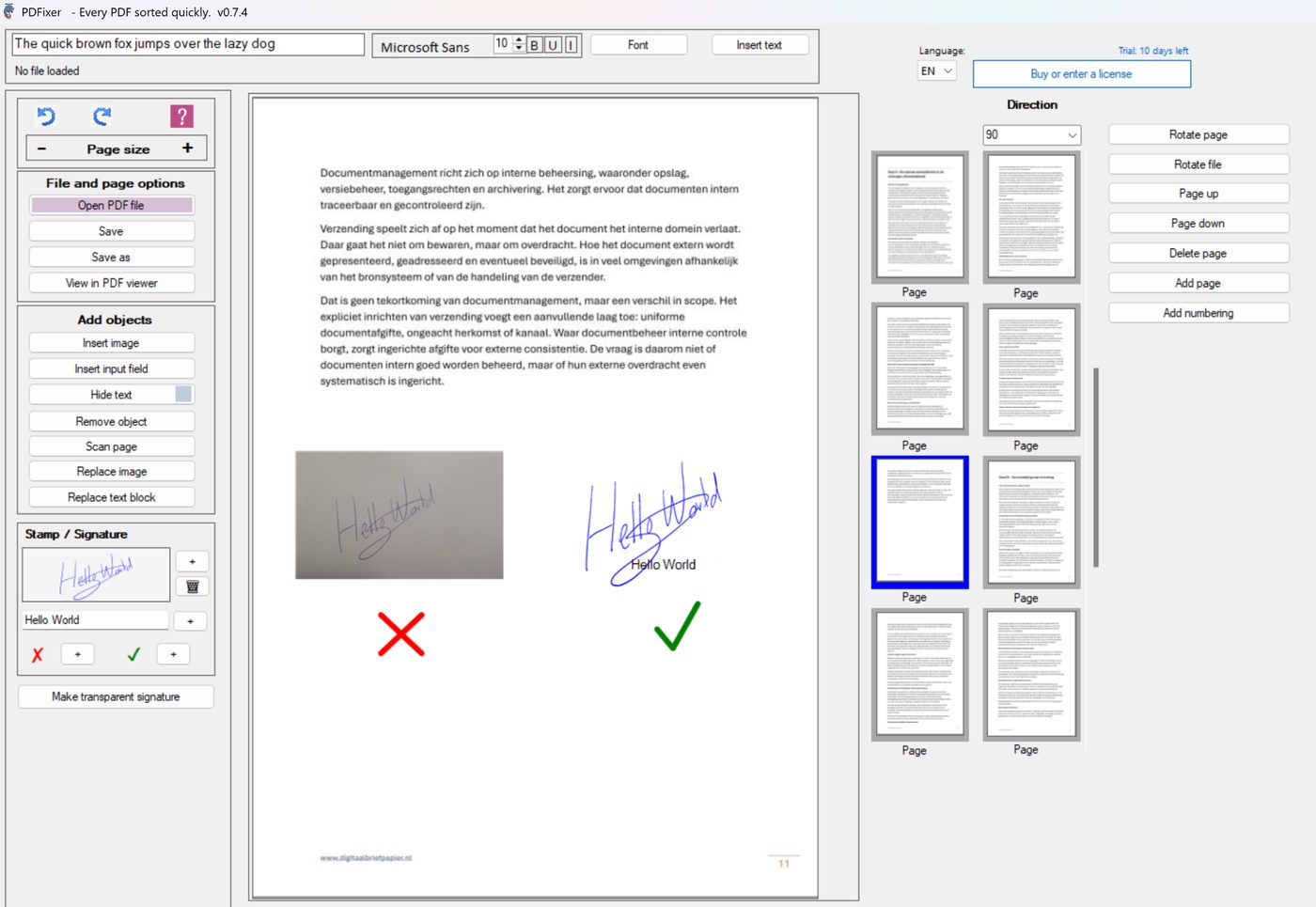
Add a clean handwritten signature to a PDF without uploading the document. PDFixer turns a phone photo of your signature into a transparent PNG, places it on the PDF, and saves the signed file locally on Windows.
Built for the practical problem most online signers handle poorly: paper tint, shadows and the white box around a photographed signature.
⚡ Launch discount: use code PFX20 and pay only €29 instead of €49 · Valid for the first 100 licences.
✓ 14-day free trial · ✓ One payment, 3-year licence: €49 excl. VAT · ✓ No subscription · ✓ No auto-renewal
4.7 ★★★★★ Made by the team behind Fabreasy · 38 reviews on Capterra · used by over 1,000 professionals · Dutch Windows software
When people search for Sign PDF, they want speed
The ranking pages put the tool first: choose a PDF, create or upload a signature, place it, and download the result. That intent is correct and the page should match it directly.
PDFixer keeps that simple path, but adds the missing step for real office work: making a rough signature photo usable before it touches the PDF.
The missed problem is the signature image
A drawn signature is easy. A typed signature is easy. A perfect transparent PNG is easy. The hard case is a real photo from a phone: grey paper, uneven lighting, shadows and blue or purple ink.
PDFixer should own that problem: photo to transparent signature to signed PDF, all on the user’s own Windows PC.
From phone photo to PDF-ready signature
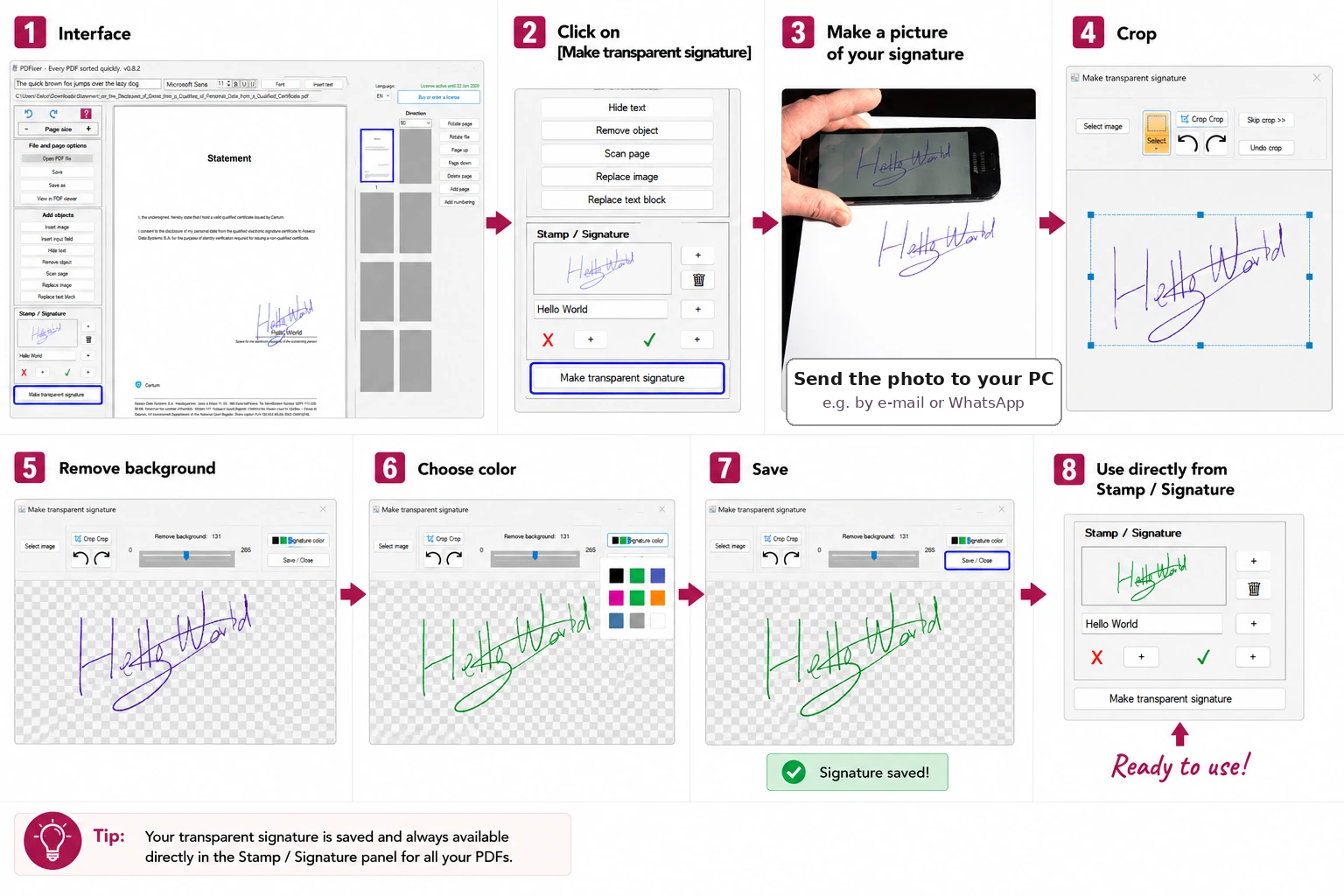
The complete workflow PDFixer should show clearly.
How to sign a PDF with a clean handwritten signature
- Open your PDF in PDFixer on Windows.
- Click Make transparent signature.
- Take a photo of your signature and send it to your PC.
- Select the image and crop away the unused paper.
- Remove the background until only the handwriting remains.
- Choose the signature colour if you want cleaner ink.
- Save the transparent PNG.
- Use the saved signature directly from the Stamp / Signature panel.
Why this produces a better signed PDF
The signature is not pasted as a rectangle. The paper disappears, so the PDF text and signature line remain visible underneath.
| Input | Phone photo, JPG or PNG |
| Output | Transparent signature PNG and signed PDF |
| Storage | Local Windows workflow — nothing uploaded |
PDFixer versus a standard online PDF signer
| Need | Standard online signer | PDFixer angle |
|---|---|---|
| Sign PDF quickly | Usually strong | Strong, but local on Windows |
| Draw or type a signature | Common feature | Useful, but not the main advantage |
| Upload a perfect transparent PNG | Works when the image is already clean | Works and can be saved for reuse |
| Clean a phone photo of a signature | Often weak or hidden | Core workflow: crop, remove background, choose colour |
| Confidential documents | Depends on browser or cloud processing | PDF stays on the Windows PC |
Use a real signature photo
Write your signature on paper, take a phone photo and turn it into a clean transparent signature image.
Place it on the PDF
Move and resize the signature so it sits naturally on a contract, form, approval page or invoice.
Reuse the signature
Keep the transparent PNG available in the Stamp / Signature panel for future PDFs, and use it in Word or Excel when needed.
Sign PDFs locally on Windows
Many PDFs that need a signature contain names, prices, addresses, terms, invoices or personal information. PDFixer opens and saves the file locally, so signing does not need to become an upload task.
That is especially useful for office teams that handle repeated customer forms, quotes, approvals and administrative documents.
Visible signature, not certificate signing
PDFixer adds a visible handwritten signature image to the PDF. It is not a certificate-based digital signature service with identity verification, audit trails or tamper validation.
Use PDFixer when the practical task is to make a PDF look signed and complete. Use a formal e-signature platform when you need verified legal signing workflows.
Related signing tasks this page covers
- Sign PDF
- Add signature to PDF
- How to add signature to PDF
- Insert signature in PDF
- Add a signature image to a PDF
- Make a transparent signature PNG from a photo
PDFixer links
FAQ about signing PDFs
How do I add a signature to a PDF?
Can I use a photo of my handwritten signature?
Why does my signature show a white or grey box?
Can PDFixer create a transparent signature PNG?
Does PDFixer upload my PDF?
Is this a certified digital signature?
How much does PDFixer cost?
Sign your PDF with a clean signature image
Download PDFixer from the Microsoft Store to install the app quickly, securely, and with automatic updates included.
✓ 14-day free trial · ✓ One payment, 3-year licence: €49 excl. VAT · ✓ No subscription · ✓ No auto-renewal
4.7 ★★★★★ Made by the team behind Fabreasy · 38 reviews on Capterra · used by over 1,000 professionals · Dutch Windows software