
PDFixer for Windows: the practical guide to adding a signature to a PDF — locally, without uploading. Download from the Microsoft Store
PDF SIGNATURE GUIDE FOR WINDOWS
How to add a signature to a PDF
The cleanest way is not just to upload a signature image. Start with a real handwritten signature, remove the paper background, place the transparent signature on the PDF, and save the signed file locally.
This guide shows the practical PDFixer workflow and explains when typed, drawn, image, electronic and digital signatures make sense.
⚡ Launch discount: use code PFX20 and pay only €29 instead of €49 · Valid for the first 100 licences.
✓ 14-day free trial · ✓ One payment, 3-year licence: €49 excl. VAT · ✓ No subscription · ✓ No auto-renewal
4.7 ★★★★★ Made by the team behind Fabreasy · 38 reviews on Capterra · used by over 1,000 professionals · Dutch Windows software
Quick answer
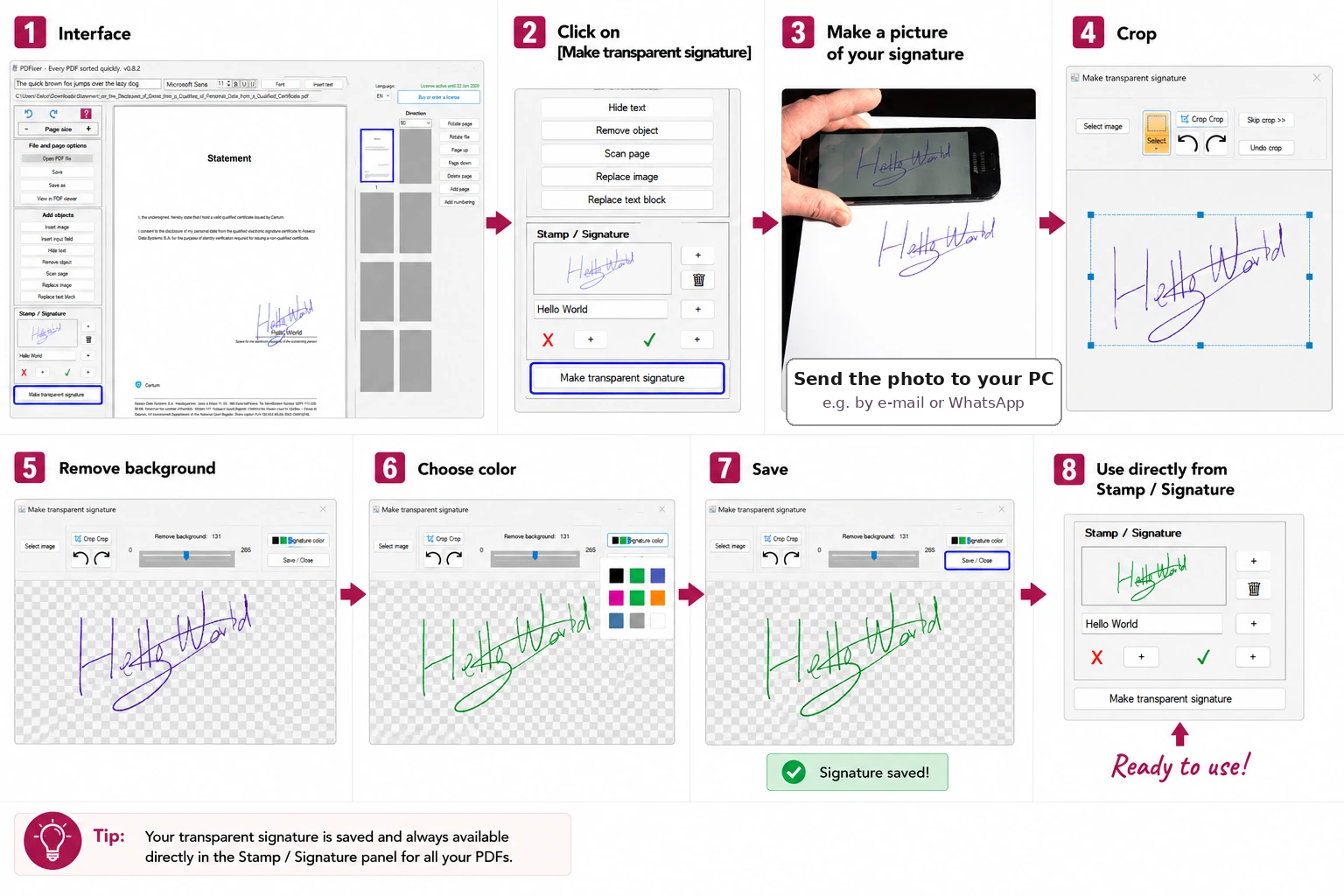
- Open the PDF in Fabreasy PDFixer on Windows.
- Make a photo of your signature and send it to your PC (email or WhatsApp).
- Click on button [Make transparent signature].
- Follow the steps below so only the handwriting remains.
- Place the signature on the PDF page.
- Save the signed PDF locally.
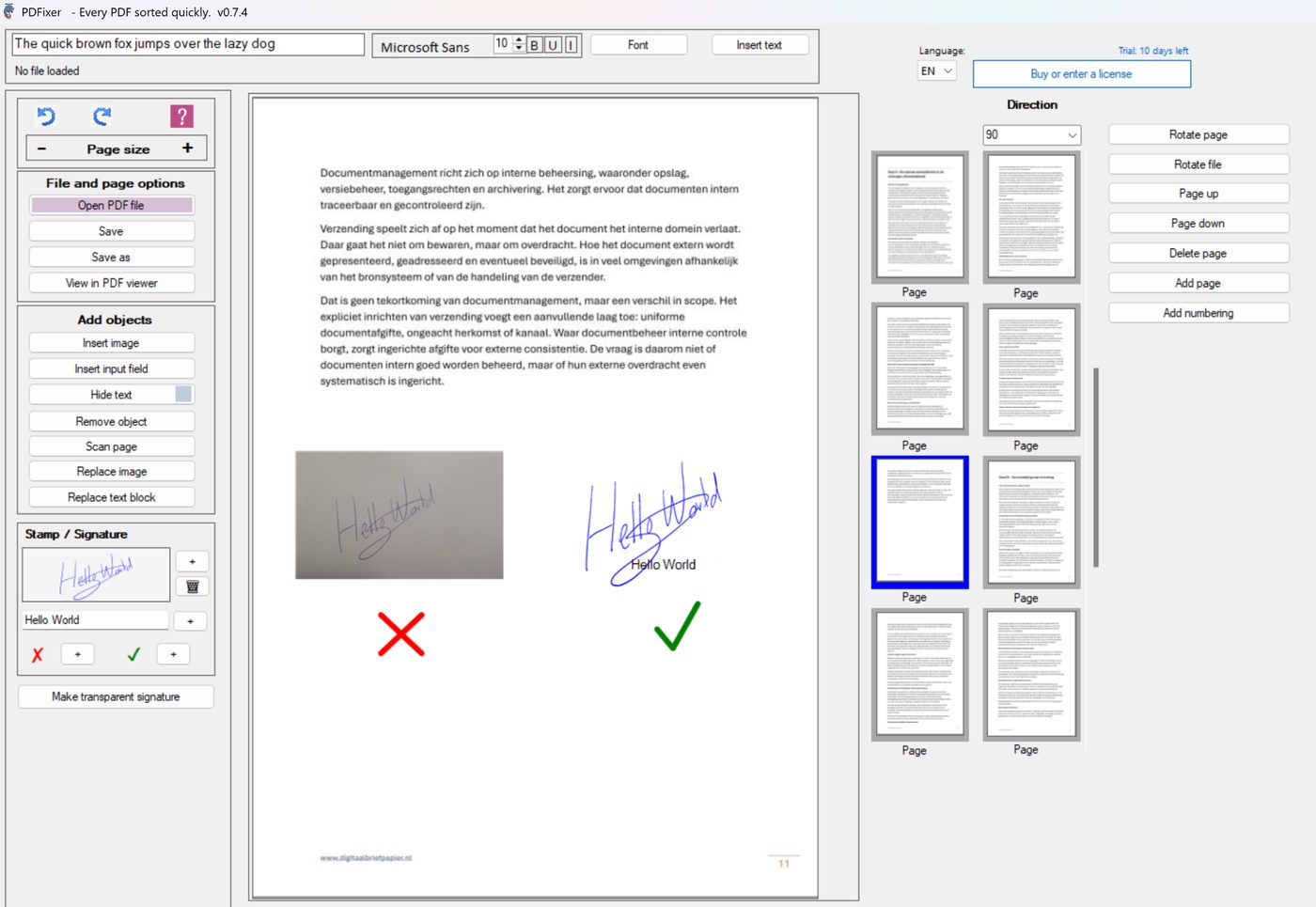
The important difference is step 3. Many online tutorials tell you to upload a signature image, but they do not solve the white or grey rectangle that comes from a normal phone photo.
Choose the right way to add a signature
| Method | Best for | Main weakness |
|---|---|---|
| Typed signature | Fast approvals where appearance is not important | Looks generic and rarely matches a real handwritten signature |
| Drawn signature | Touchscreens or quick one-off signing | Hard to draw neatly with a mouse |
| Uploaded image | When you already have a clean transparent PNG | A phone photo often keeps the paper background |
| Cleaned photo signature ✓ | Real handwritten signatures from paper | Needs background removal — PDFixer handles this in one step |
| Certified digital signature | Verified legal workflows with certificates and audit trails | More formal than most everyday signing tasks require |
What most tutorials get right
The leading guides usually explain the same core choices: type a signature, draw one, upload an image, use an online signer, use Adobe, or use a platform.
That is useful when you need a broad overview. It is less useful when your real problem is a photograph of your signature with grey paper, shadows and a background that should not appear on the PDF.
What PDFixer focuses on
PDFixer focuses on the practical office workflow: make a signature on paper, photograph it, clean the background, place it on a PDF, and reuse it later. The PDF stays on your Windows PC throughout the process.
That makes it a strong fit for contracts, quotes, approvals, invoices and forms where a clean visible handwritten signature matters more than a formal e-signing workflow.
Step-by-step with PDFixer
1. Prepare the signature
Write your signature clearly on plain paper and take a sharp photo. Blue or black pen usually works best.
2. Clean the background
Import the image into PDFixer and remove the paper background. The goal is a transparent signature image, not a rectangle pasted onto the PDF.
3. Place it on the PDF
Open the PDF, add the cleaned signature, resize it and align it with the signature line.
4. Save and reuse
Save the signed PDF locally. If you sign documents often, save the cleaned signature as a preset.
When another method is better
Use an e-signature platform
Choose a formal e-signature platform when you need recipients, reminders, identity checks, audit trails or a legally managed signing flow.
Use Adobe or another editor
Use a full PDF editor when you need complex editing, certificates, forms, redaction or enterprise document controls.
Use a web signer
Use a web signer for low-risk one-off documents where uploading the PDF is acceptable and the signature image is already clean.
Electronic signature, digital signature or signature image?
A signature image is a visible mark on the PDF page. It can be a cleaned photo of your handwritten signature. An electronic signature is a broader term for showing intent to sign electronically. A certified digital signature is different: it uses certificates, identity controls and tamper evidence.
PDFixer is designed for the visible signature-image workflow. It is not a replacement for certificate-based digital signing when that is legally or contractually required.
FAQ about adding a signature to a PDF
How do I add a signature to a PDF?
Can I use a photo of my handwritten signature?
Why does my signature look like a pasted box?
Is a signature image legally binding?
Does PDFixer upload the PDF?
How much does PDFixer cost?
Add a clean signature to your PDF
Download PDFixer for Windows and turn a real handwritten signature into a PDF-ready transparent image.
✓ 14-day free trial · ✓ One payment, 3-year licence: €49 excl. VAT · ✓ No subscription · ✓ No auto-renewal
4.7 ★★★★★ Made by the team behind Fabreasy · 38 reviews on Capterra · used by over 1,000 professionals · Dutch Windows software